Image generated with ChatGPT I have been using ChatGPT projects for a while, and the other day I realized I was doing it terribly wrong.
The scroll bar seemed infinite, and that browser tab must have been devouring all available RAM. Result: every time I asked for something new, it took ages to respond… and eventually it would freeze. As a makeshift solution, I would copy the URL, close the tab, open another one, and wait for it to freeze again. A frustrating situation that made me think there must be better ways to approach it.
If this sounds familiar —or if it sounds foreign but you want to make the most of ChatGPT without drama— join me. Here’s a tried-and-true method that saves you headaches and wasted hours.
🕒 Summary for busy people
Estimated reading time for the full article: 11 minutes.
ChatGPT Projects are a way to group chats, files, and instructions under a single objective to gain focus and avoid infinite threads. The golden rule: one objective per chat, well-named files, and a single source of truth (context.md) that you keep updating.
Use prompts like RCO (Role, Context, Objective) as project instructions, and decide whether to work with project-only (when there is sensitive data) or with global memories for cross-cutting preferences. Branch out when a chat becomes unwieldy and summarize the thread periodically to restart lightly.
Four levers that do work:
- Schedule the deterministic and leave the vague to the AI.
- Compress the history into a living context.md (every 300–400 messages).
- Move/branch chats instead of resurrecting zombies.
- Collaborate with order: clear permissions (Chat/Edit) and titles with verb+result.
Avoid anti-patterns: catch-all projects, bible in a binder instructions, toxic global memory, and zombie files. The goal is to build continuously while avoiding the collection of useless chats.
Table of contents
- What is a project?
- Set up your project step by step
Create the project.
Add instructions.
Upload key files.
Start chatting within the project.
Move existing chats to the project.
Choose the project memory mode.
(Optional) Share with your team.
- How does ChatGPT “remember”? Memory vs history.
- Retrieve context without dragging a dinosaur.
Stay within the same project.
Global memories.
Move or branch chats.
- Can a chat be compressed?
Option 1 — Compress with the model’s help.
Option 2 — Archive and continue.
Option 3 — Personal memory for cross-cutting matters.
Option 4 — Contextual files within the project.
- Best practices that work in real life.
Structure and focus.
Project instructions (RCO).
Memory and privacy.
Workflow in chats.
Collaboration.
- Mini-startup checklist (for copy/pasting).
- Typical questions (and straightforward answers).
- Anti-patterns (things that seem like work but are noise).
- A realistic example to “restart” without losing the thread.
- The human side of memory (yes, even here).
- In summary (and to get started today).
1) What is a project?
A Project is a folder that allows ChatGPT to group chats, files, and common instructions under a single objective. The result is that you don’t repeat context every time you open a chat, and you can resume work without diving into message archaeology.
Translation to productivity: less “let me tell you again…” and more “let’s continue where we left off.”
Note: here I focus on ChatGPT, which is where I use this feature the most, but Google NotebookLM and Grok have similar ideas. The techniques below can be extrapolated.
2) Set up your project step by step
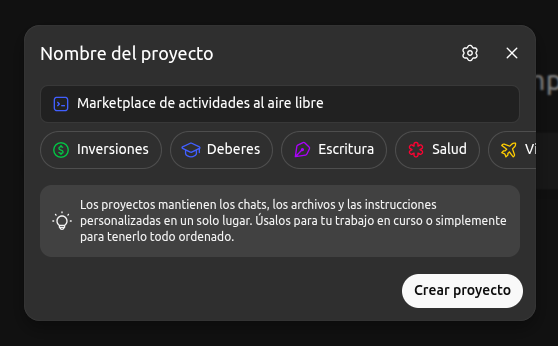
Create the project
From the sidebar: New Project. Give it a name that stands the test of time: Client X – Ecommerce 2025 or Conversational CV – Web. If your eyes are already watering from Project 1 (final) (definitive), you understand. Choose an icon and a color for quick identification.
Add instructions
These are the operational summary that all chats in that project inherit. Here’s a minimalist template:
- Role: “Act as an expert in startup creation and scaling.”
- Context: “Marketplace project for outdoor activities.”
- Objective: “Help me design a digital marketplace for outdoor activities.”
- Constraints: “Do not invent data or facts; if information is missing, ask. Direct tone, no embellishments.”
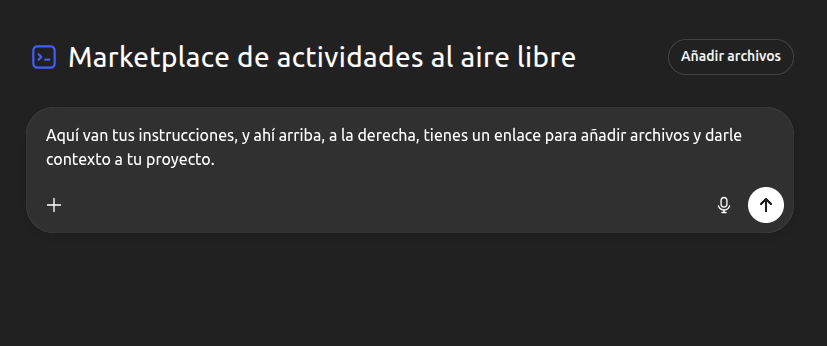
These instructions live within the project. Outside of it, the model does not see them.
Upload key files
Documents, spreadsheets, contracts, datasets, diagrams, images… They will be the contextual reference for your project. Upload limits vary by plan, and the maximum per batch is usually 10 files.
Use decent names: contexto.md, pacto-socios.docx, prevision-financiera.xlsx. Do not upload Borrador (copy) (copy) FINAL 2.pdf. Your “future self” will thank you.
Start chatting within the project
Each chat inherits the instructions and access to the files, increasing the accuracy of responses and mitigating hallucinations.
Key trick: one objective per chat. Be careful not to prolong it too much, or you’ll be back at square one. ChatGPT tends to offer help in every interaction, which can lead to an endless conversation. Clearly define your objective with each chat and move on to a new one once you’ve achieved it. Below, I’ll tell you how to reuse context without carrying a mammoth thread.
Move existing chats to the project
If you think a loose chat could add value to a project, move it in. Click on the chat menu (the three dots next to Share, at the top right) → Move to project. You can also drag the chat into the project.
The old chat doesn’t rejuvenate, but from there play by the new rules and access the project context.
Choose the project memory mode
- Project-only: the memory is confined to that project. Nothing else from your life sneaks in here and vice versa. Ideal for sensitive data (clients, contracts, etc.) or long-term work.
- Default: the model can use your global memories (what it remembers about you) and, depending on the plan, reference other chats. Important: in shared projects, the memory switches to project-only and there’s no going back, providing an additional layer of security for the data.
(Optional) Share with your team
In certain plans, you can invite via email or by sharing the project link.
There are two types of permissions: Chat (who asks and writes) and Edit (who manages instructions and files).
Agree on a naming convention: “Define feature list v1”, “Weekly summary – Week 42”. Little poetry, much clarity.
3) How does ChatGPT “remember”? Memory vs history
It’s important to make a distinction:
- Saved memories (global): what the tool remembers between conversations: “I am a software developer,” “I prefer brief answers,” “my static web stack is Astro + Tailwind.” At any moment, you can ask it “Remember that…” or “What do you remember about me?” to see, edit, or delete what has been memorized.
- Chat history: each conversation is a thread. It can reference what came before, but it’s not eternal. And if the thread becomes an encyclopedia, the problem is no longer with the model: it’s the browser, which struggles to render your chronicles of the Indies.
- In projects:
With project-only, chats only consider conversations from the same project.
With default memory, they can use global memories and, depending on the plan, peek into other threads.
In higher-tier plans, project chats prioritize the resources of the project itself.
Mnemonic: memory is what is stable (“who you are and how you work”); history is what is conversational (“what you said here”).
4) Retrieve context without dragging a dinosaur
You have three reliable avenues:
1. Stay within the same project
This is the most solid because you reuse instructions, files, and previous chats. If you can, don’t leave.
2. Global memories
For cross-cutting preferences (“I prefer short answers,” “respond with verified data”), use global memories. “What do you remember about me?” shows the model’s mental state; adjust what’s left over.
3. Move or branch chats
If a chat becomes unwieldy —because it has gone off on tangents, accumulated old decisions, or you simply don’t know where you are in the thread— don’t try to “fix it” within the same one. Move it to the project (so it inherits its instructions and files) or branch it to create a new conversation from a specific point.
Techie note: That Copy and continue from here function acts like a branch in programming: you freeze the current state, open a parallel line, and can experiment without breaking the original thread. This keeps the history clean, avoids losing context, and gives you the freedom to try ideas without fear of messing up the project.
Hygiene tip: if you don’t want to contaminate your global memory with what you generate within a project, use project-only or open a temporary chat with clear limits.
5) Can a chat be compressed?
The question that arises when the browser smells burnt. There’s no magic button, but there is technique and method. Here are four options that work:
Option 1 — Compress with the model’s help
- In the heavy chat, ask for a structured summary that you can save as project context without carrying all the previous history:
“Give me a structured summary of everything we have worked on in this outdoor activities marketplace project. Include: – The strategic decisions we have made (business model, target audience, type of activities). – The main functionalities we have already defined. – The points where there are still doubts or missing data. – The ideas that came up but have not been prioritized. – And any important conclusions or recommendations for moving forward.”
This way, you’ll get a clear, useful, and actionable summary that you can save as project context without carrying all the previous history.
- Review, correct, and promote that summary to a document. If details are missing, add them manually. Upload the file as a context file for the project.
- Open a new chat in the project and ask: “Load the context from **
contexto.md** and continue.”
What you gain: lightness, focus, and a summary that is readable.
Rule of thumb: every 300–400 messages, regenerate the context.md file and replace it. Better a living context than an eternal thread.
Option 2 — Archive and continue
If you’re not using projects yet (do it): copy the summary into resumen-chat1.md and open a new chat with:
“This chat starts from the summary of the previous one: [paste the summary]. Let’s continue along the same line of work.”
You don’t inherit every minutia, but you do get the semantics and the decisions.
Option 3 — Personal memory for cross-cutting matters
“Remember this in my personal memory: in the outdoor activities marketplace project, we are creating a platform that connects people looking for authentic experiences with local organizers. We want to prioritize quality over quantity, highlight activities with a positive impact on the environment, and maintain a close, inspiring, and human tone in all communication.”
It doesn’t save everything, only what is stable. Outside the project, those preferences accompany you.
Option 4 — Contextual files within the project
My favorite:
- Create
contexto.mdand use it as the single summarized source of truth. - When closing a cycle: “Update **
contexto.md** with the new developments and summarize it to a maximum of 2,000 tokens.” - In the next chat: “Load **
contexto.md** as initial context.” You start light and aligned.
6) Best practices that work in real life
Structure and focus
Each project should have a single objective or client. Don’t mix apples and oranges: if you try to put e-commerce, the newsletter, and data strategy in the same folder, you’ll end up with a jumble that’s impossible to maintain. Give it a clear name, a recognizable icon, and a consistent color for quick identification.
Centralize what’s important: upload your sources of truth —the brief, key documents, agreements, final data— and keep them updated. A well-maintained file is better than ten contradictory versions.
Finally, title each chat with a verb and a clear result: “Define activity categories,” “Design value proposition for local guides,” “Prepare briefing for launch campaign.” This way, when you return in a week, you’ll know what you did and what it was for, without having to read twenty messages to get oriented.
Project instructions (RCO)
RCO stands for Role, Context, and Objective, and it’s the foundation on which the project understands who you are and what you expect from it. Keep the instructions short and operational, without unnecessary embellishments.
Include the tone or style you want to maintain, the context (not necessarily technical, just enough to define the type of project), and the limits: for example, “if data is missing, ask” or “do not invent information.”
Review the instructions periodically. Projects change, and the instructions should too. Think of it as giving periodic vitamins to the project to keep it healthy and relevant.
Memory and privacy
When working with sensitive data or confidential information, choose the project-only option. This way, you avoid mixing any of that content with your other projects or your general memory.
For your personal preferences —the tone you like, the way you write, or the tools you usually use— use global memories.
Every now and then, do a simple audit: ask ChatGPT “What do you remember about me?” and clean up what no longer makes sense. Memory, like any hard drive, fills up with useless things if you don’t review it.
Workflow in chats
Before diving into crazy ideas, branch the conversation. Creating a new branch is like opening a clean notebook: it allows you to experiment without breaking the original thread.
Periodically, create a “Weekly Summary” chat where you consolidate decisions, links, and progress. Your “future self” will thank you. When you return to the project weeks later, just reading that summary will be enough to catch up effortlessly.
Collaboration
If you work in a team, make it clear who does what: who uses the chat to ask for things (Chat) and who manages the instructions or project files (Edit).
Also, agree on a common way to name chats and documents —for example, “Define user profile” or “Review pricing proposal”— and create a small shared glossary.
Because if a word like “activity” means three different things to three people, someone will end up frustrated (and it won’t be the AI).
7) Mini-startup checklist (for copy/pasting)
- Create project “Client/Product – Year”.
- Paste RCO instructions (role, context, objective + limits).
- Upload README/brief + base docs.
- Start chats: “Backlog of questions” and “Weekly summary”.
- Move relevant previous chats to the project.
- Choose project-only if there is sensitive data; if not, default.
- (Optional) Share with the team (Chat/Edit) and agree on naming convention.
8) Typical questions (and straightforward answers)
Can I share a loose chat? Yes. Button Share → link that shows only that chat. The rest of the project does not get exposed.
What happens if I leave a shared project? You can take a copy of your chats to a new personal project. The shared custody of conversations is less dramatic than human custody.
My chat is huge. How do I save it?
Summarize → ** contexto.md ** → new chat that loads that context. Repeat every 300–400 messages. If you feel guilty about deleting, archive: resumen-chat1.md, resumen-chat2.md… You’ll have a saga.
9) Anti-patterns (things that seem like work but are noise)
Catch-all project “Everything from 2025.” No. One objective per project. We’ve already seen that mixing everything in one bag is counterproductive, and no RCO can save that.
Bible instructions 1,800 solemn words. The model doesn’t need your testament; it needs short, clear, and executable orders.
Toxic memory Saving as global memory what is contingent. Result: responses with the same client/tone/stack for everything. Clean it up or everything will taste the same.
Zombie files Three versions of the same PDF and none are the right one. Keep a single source of truth and delete everything else. If it hurts, you’re doing well.
Double source
Decisions in the chat and in a .md. Which one prevails? The document. The chat comments; the .md decides.
10) A realistic example to “restart” without losing the thread
Imagine your project for the outdoor activities marketplace has been progressing for weeks, and the chat now seems like an eternal conversation: there are decisions mixed with loose ideas, duplicate messages, and unresolved doubts.
At that point, the best thing to do is to clean up. Ask for something like this:
“Give me a summary of everything we have worked on in this outdoor activities marketplace project. Include:
– The strategic decisions we have already made (business model, target audience, value proposition).
– The main functionalities we have defined so far.
– The points that are still open or the pending doubts.
– The ideas that came up and could be revisited later.
– And a list of next steps to continue in an orderly manner.”
Review the summary, upload it as contexto.md or paste it into the project instructions, and open a new chat with this phrase:
“This new chat starts from the saved context (context.md). Let’s continue developing the user experience of the marketplace.”
The result: a clean environment, coherent responses, and zero vertigo when scrolling. You’ve turned chaos into context, and that —at its core— is all a good project needs.
11) The human side of memory (yes, even here)
“Memory” sounds technical, but we’re talking about identity, preferences, and decisions. When you organize the memory of a project, you organize yourself: you refine your tone (the one you want, not the one that comes out of laziness), your way of working (branching, versioning, summarizing), and your limits (what you won’t accept, for security or scope).
In customer service, it’s clear: chatbots handle the routine, but when the problem gets complicated, a human appears. The same goes for projects: the machine sets the table; you decide the menu. Happy paradox: the better you structure your projects, the more human time you reclaim to think, negotiate, create, and, yes, make mistakes with style to keep improving.
If one day machines even match that management of nuances, we’ll have a topic for another Saturday. Until then, I’ll stick with something simple: memory is not a drawer to stuff things into; it’s a lighthouse to navigate through the fog. A well-structured project is that lighthouse: it illuminates what’s important and leaves the accessory in shadow.
12) In summary (and to get started today)
- Create a project with a worthy name.
- Generate a brief and useful RCO.
- Upload your sources of truth.
- Work within the project.
- Summarize and restart when the thread gets fat.
- Project-only for sensitive matters; global memories for your preferences.
- Share thoughtfully and maintain a single source of truth.
- Order is not a virtue: it’s a competitive advantage.
Taming projects is not about collecting chats like stickers, but about building continuity. Continuity turns work into craft. And craft, when it has memory, finds its voice. May your voice be clear, may your project be a lighthouse, and may the fog —if it comes— catch you with contexto.md up to date.
If you found this useful, share it so it reaches more people.
🚀 Every week reflections like this in your inbox. Subscribe to Technological Puddles.